Elevate your LinkedIn and X game with Drope AI's revolutionary viral post generator. Perfectly crafted for content creators, influencers, digital marketeers, and mid-sized companies, our AI-driven tool ensures your brand voice remains consistently impactful. With over 150 innovative templates and seamless hero image integration from Pexels and Pixabay, Drope AI transforms your content creation journey. Join us at dropeai.com and discover why Drope is Dope at making your posts go viral!
Here are the steps on how to connect your accounts and set-up your schedule. Please note Drope AI can help you generate text content for Linkedin and X.
Step 1: Connecting to your Linkedin Profile
Each user can connect the social media platforms they need for scheduling posts. Currently, we support Twitter and LinkedIn.
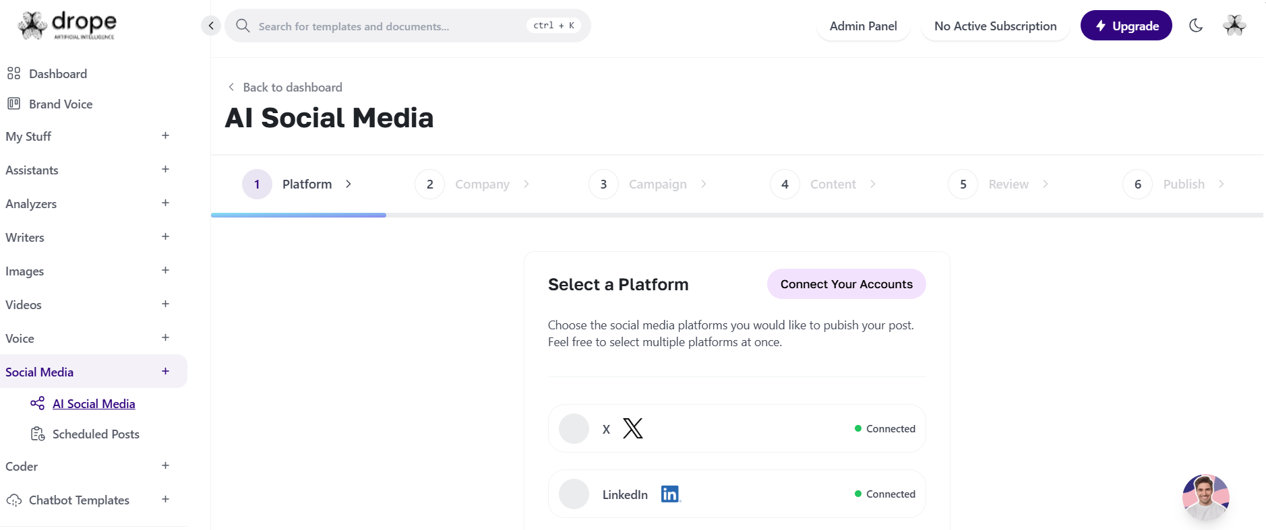
Check our Social Media dashboard (link)
Connecting LinkedIn
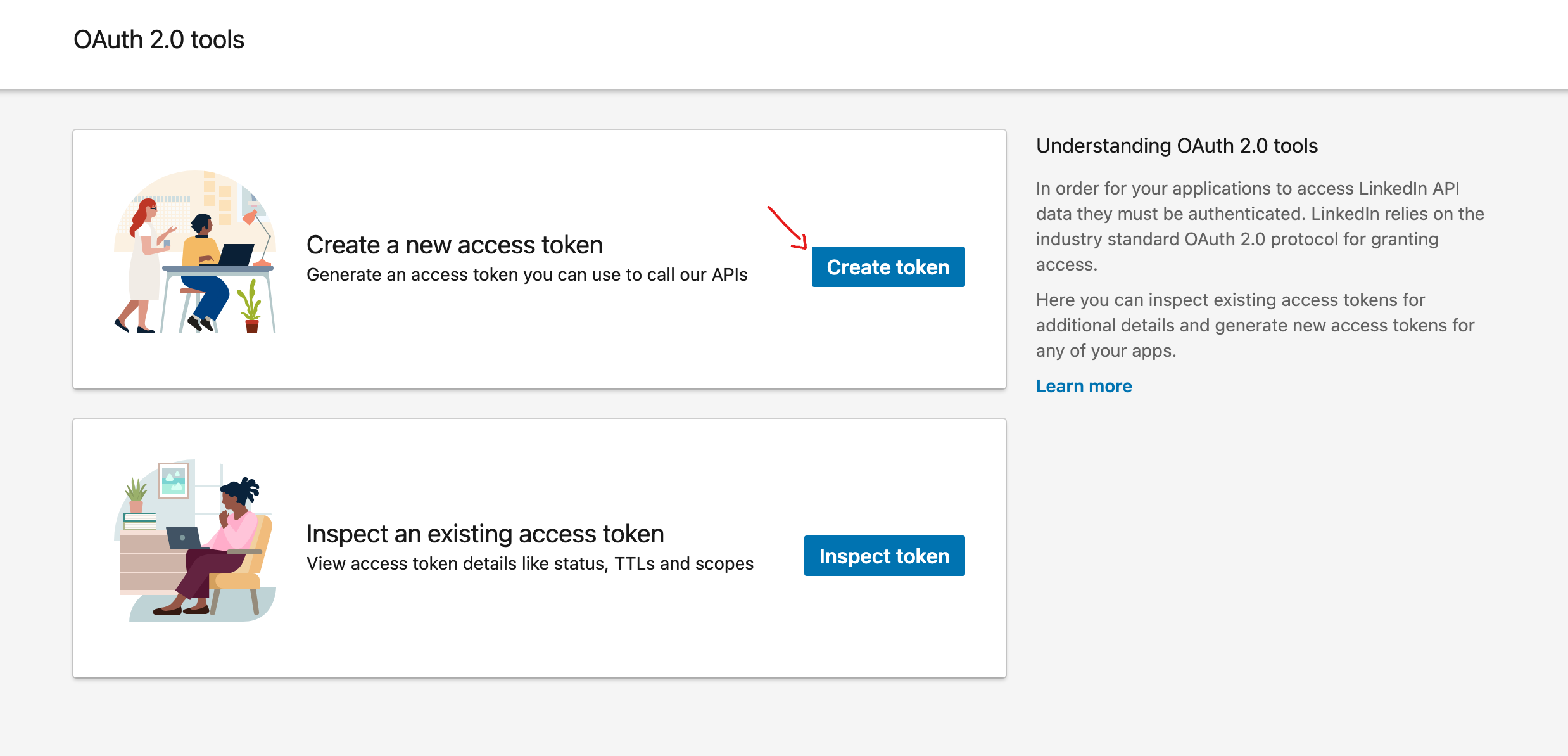
1. Click on the OAuth Token Generator (link)
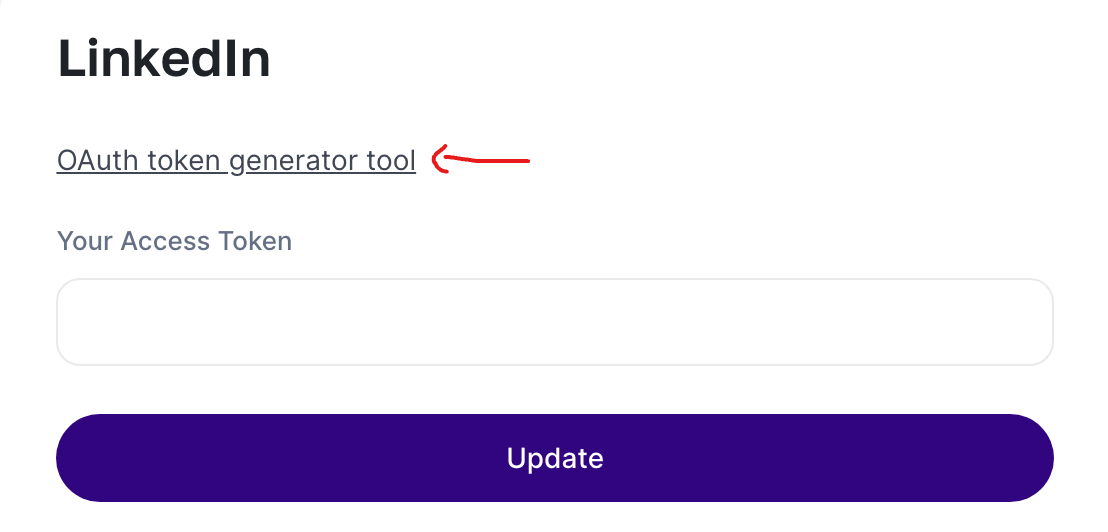
2. Generate an OAuth token by creating a new access token in the “Create a new access token” menu after setting up your app.
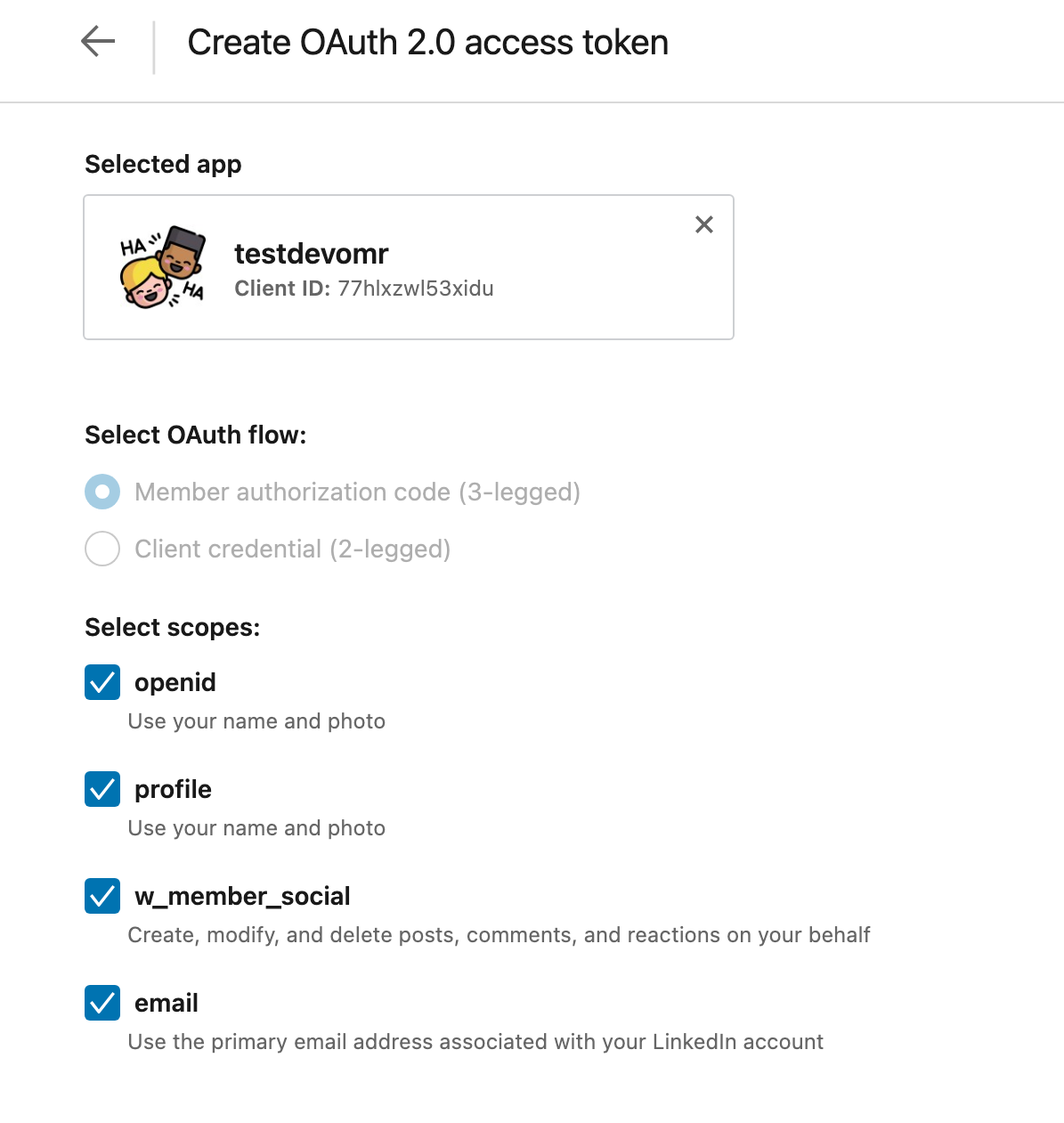
3. Select the following scopes:
• openid (Use your name and photo)
• profile (Use your name and photo)
• w_member_social (Create, modify, and delete posts, comments, and reactions on your behalf)
• email (Use the primary email address associated with your LinkedIn account)
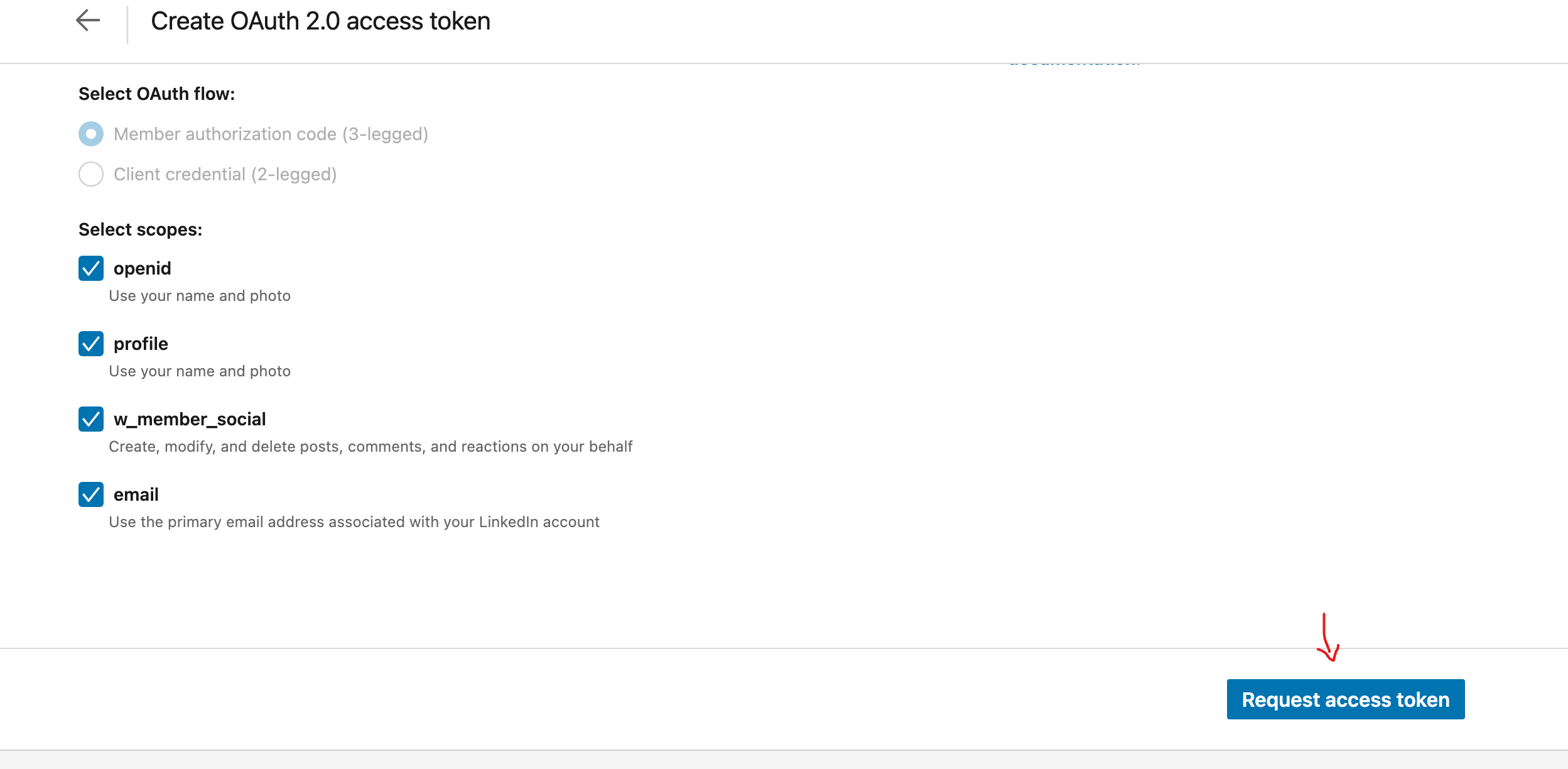
1. Click on the “Request access token” button.
o If you encounter issues with token generation, try using a different browser.
2. Copy the generated token and paste it on the LinkedIn connect page.
That's it, you can now use drope AI to generate (text) content, schedule and post directly to your Linkedin profile.
Step 2: Connecting to X (Formerly Twitter)
It's helpful to understand the documentation (link) for this but not absolutely necessary.
1. Go to your x developer account (link) and obtain the necessary credentials. Create an app (you are allowed to create one free app).
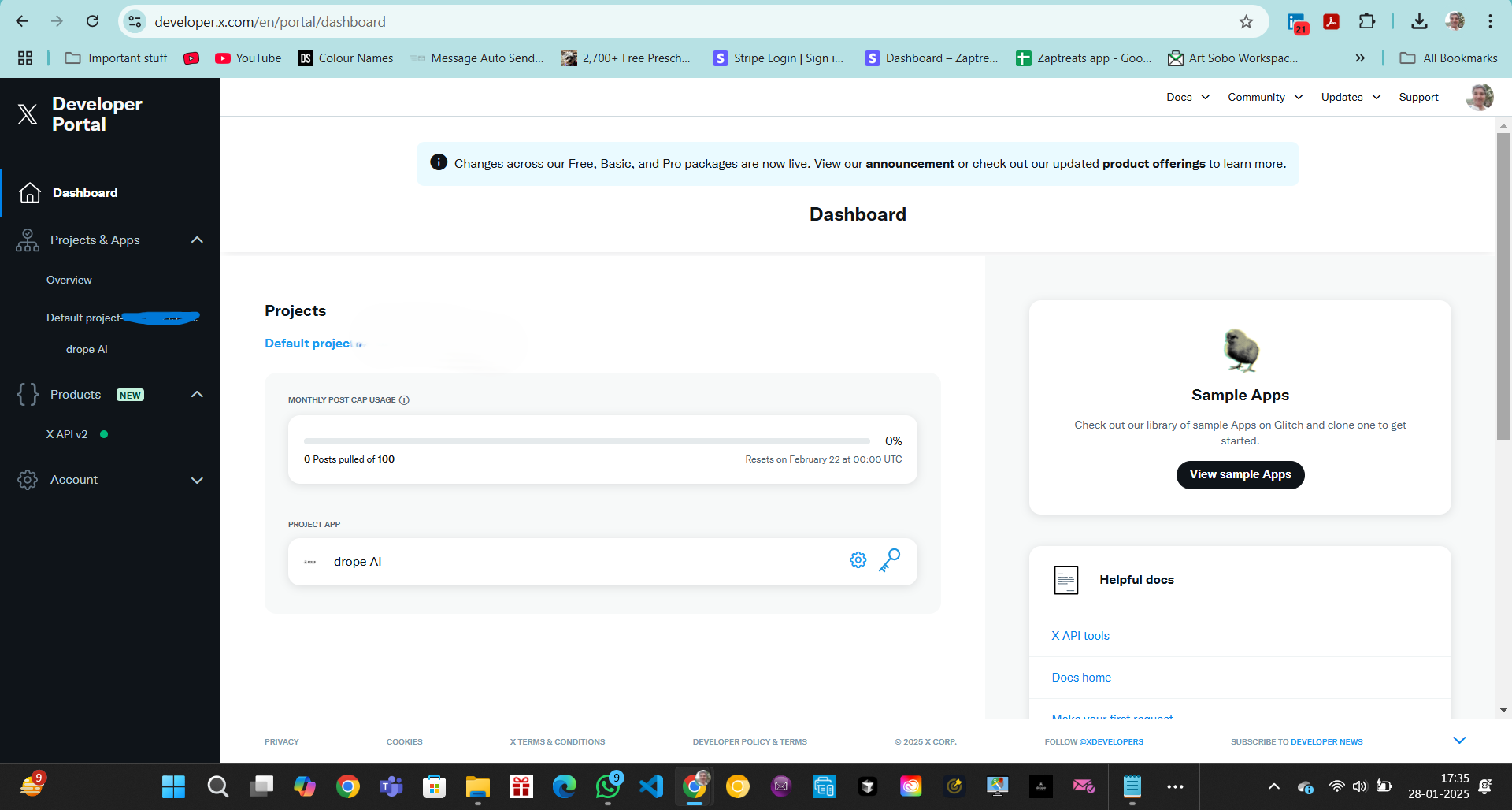
Go to your X app 'Keys and Tokens' next to 'Settings' and copy your credentials listed below:
• API Key
• API Key Secret
• Bearer Token
• Access Token
• Access Token Secret
• Client ID
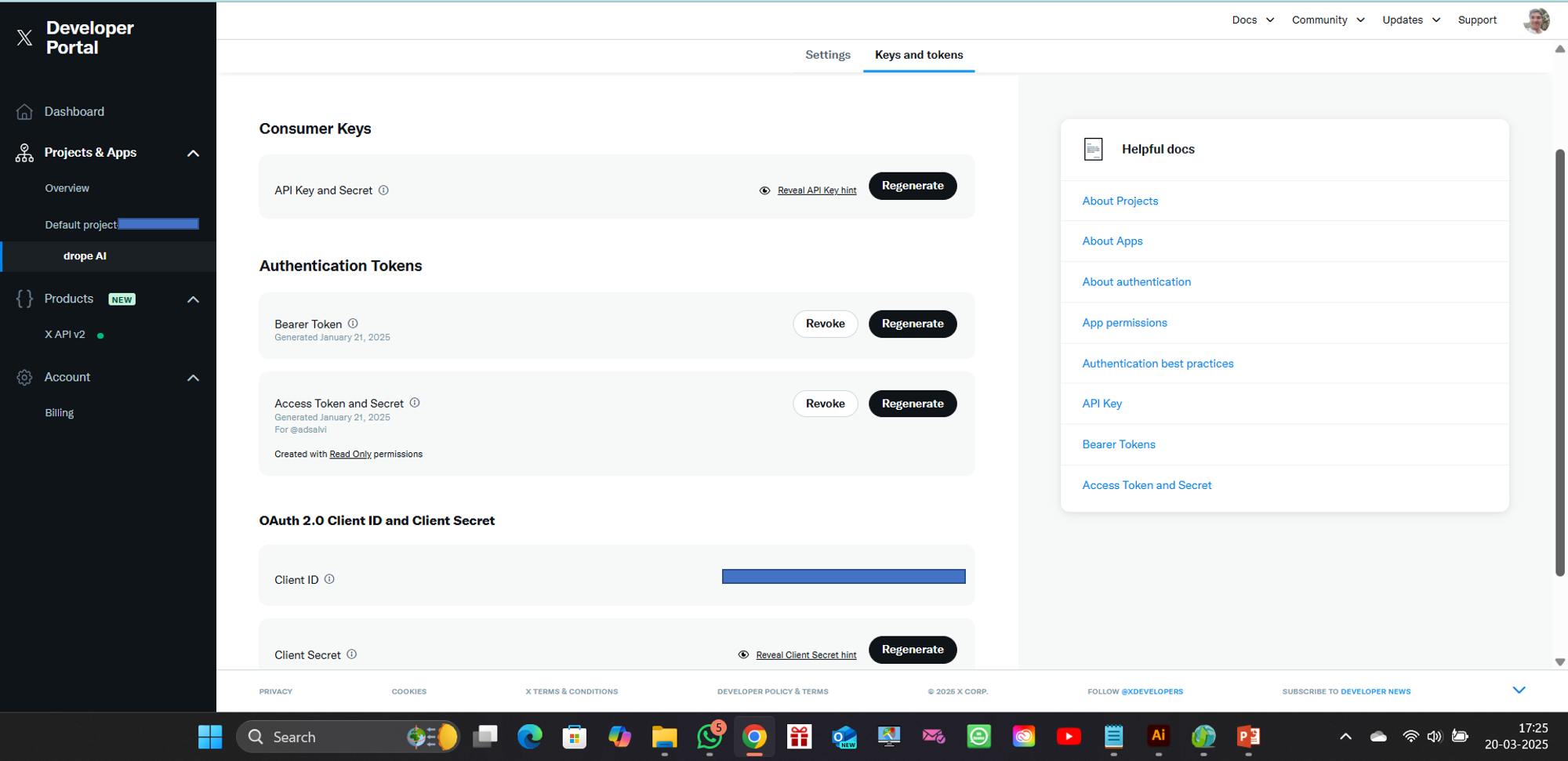
Paste these credentials into the Drope AI (AI Social Media) page and that's it, you're good to go.
Step 3: Setting Brand Voice
After connecting your platforms, ensure to enter your company and service/product information in the brand voice page. This will personalize AI-generated social media content.
Check out our blog about training your Brand Voice... (Read more)
We will soon be adding the option to post directly to Instagram, stay tuned for this!
For more information write to admin@dropeai.com